Deploy a PCG to an Existing Kubernetes Cluster
For infrastructure environments that the Palette CLI does not support, you can deploy a Private Cloud Gateway (PCG) to an existing Kubernetes cluster.
Supported Environments
You can deploy a PCG onto an existing Kubernetes cluster that is not managed by Palette to the following environments:
-
AWS
-
Azure
-

 Nutanixinfo
To select Nutanix as the PCG cloud type, you must Register Nutanix Cloud with Palette.
PCG Sizing
The following table provides the recommended sizing for the PCG based on the number of nodes, CPU, memory, storage, and the maximum concurrent cluster deployments. You can continue to deploy additional clusters once the current clusters deployment batch is complete.
We recommend using a minimum of 3 nodes for production environments. Single node clusters are better suited for development and testing environments.
Single-Node Cluster
| Size | Nodes | CPU | Memory | Storage | Maximum concurrent cluster deployments |
|---|---|---|---|---|---|
| Small | 1 | 4 | 4 GB | 60 GB | 1-3 |
| Medium | 1 | 8 | 8 GB | 100 GB | 4-6 |
| Large | 1 | 16 | 16 GB | 120 GB | 7-10 |
High-Availability (HA) Cluster
| Size | Nodes | CPU | Memory | Storage | Maximum concurrent cluster deployments |
|---|---|---|---|---|---|
| Small | 3 | 4 | 4 GB | 60 GB | 4-6 |
| Medium | 3 | 8 | 8 GB | 100 GB | 7-10 |
| Large | 3 | 16 | 16 GB | 120 GB | 10-15 |
Prerequisites
-
An existing Kubernetes cluster that has network connectivity with Palette. The Kubernetes cluster must be able to connect to the internet to download the required images and packages and connect with Palette on port 443. To learn more about PCG network requirements, refer to the Network Communication section.
warningDo not install the PCG in a Kubernetes cluster managed by Palette. The installation will fail due to resource naming conflicts.
-
Sufficient permissions to deploy the PCG services in the cluster. The default Kubernetes cluster roles cluster-admin and admin have the necessary permissions to deploy the PCG services.
-
The Kubernetes cluster must have at least the following resources:
- 4 vCPUs
- 4 GB of memory
- 60 GB of disk space
- 1 control plane node with worker capabilities or 3 nodes for production environments. Refer to the PCG Sizing section for more information.
- A Container Network Interface (CNI) plugin installed.
- A Container Storage Interface (CSI) plugin installed.
- The Kubernetes cluster must use a version of Kubernetes that is compatible to your Palette version. Refer to the Kubernetes Requirements section to find the required Kubernetes version.
-
PCG IP address requirements:
- One IP address for a single-node PCG or three IP addresses for a three-node PCG. Refer to the PCG Sizing section for more information on sizing.
- One IP address reserved for cluster repave operations.
- One IP address for the Virtual IP (VIP).
- DNS can resolve the domain
api.spectrocloud.comor the domain that you have configured for a self-hosted Palette installation.
-
If you want Palette to display cluster metrics, ensure that the metrics server is installed in the cluster. You can install the metrics server using the following command.
kubectl apply --filename https://github.com/kubernetes-sigs/metrics-server/releases/latest/download/components.yaml
Install PCG
Use the following steps to install the PCG in your existing Kubernetes cluster.
-
Log in to Palette as a tenant admin.
-
From the left main menu, select Tenant Settings.
-
From the Tenant Settings menu, select Private Cloud Gateways > Add New Private Cloud Gateway.
-
On the Private Cloud Gateway installation instructions dialog, select Self Hosted.
-
Enter a Private cloud gateway name and use the Cloud type drop-down menu to select the target infrastructure provider. Create your PCG when finished. You are redirected to the Private Cloud Gateway Overview page.
-
To install the Palette agent, copy the kubectl commands from the side drawer and execute them against your self-hosted cluster. Issue the commands in the order they are listed.
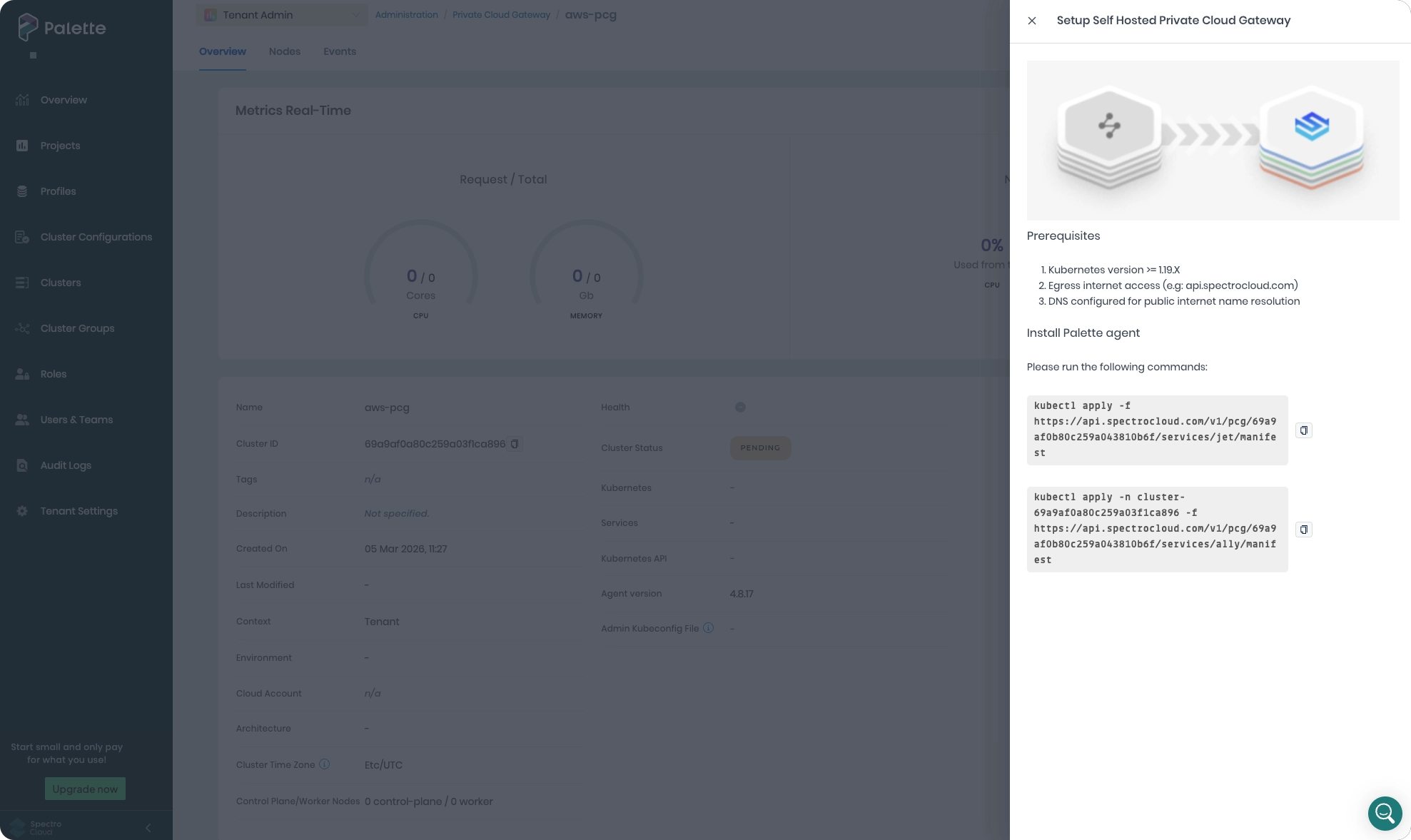
-
Close the side drawer once you issue both commands. The Cluster Status field displays Pending while the PCG is deploying. The deployment is complete when the Cluster Status field displays the status Running.
tipYou can provide network proxy configurations to your Kubernetes clusters deployed through Palette. To provide network proxy configurations to your host clusters, update the PCG with the proxy server details. To learn more, check out the Proxy Configuration guide.
Validate
When deployed, the PCG registers itself with Palette. Use the steps below to verify if the PCG registration is successful.
-
Log in to Palette as a tenant admin.
-
From the left main menu, select Tenant Settings.
-
From the Tenant Settings menu, select Private Cloud Gateways, and choose your PCG.
-
On the Private Cloud Gateway Overview screen, verify the Cluster Status is Running.
Next Steps
Once your PCG is in the Running state, you can add an AWS, Azure, or Nutanix cloud account to Palette with the Connect Private Cloud Gateway option toggled. You can then use the PCG to deploy and delete clusters in the cloud environment connected to the PCG.